Jasper Alblas
Jasper Alblas
Data Engineering • Analytics • Business Intelligence
Welcome to this walkthrough of the Windows Event Logs Room on TryHackMe. In this room we get to learn about Windows Event Logs and the tools to query them. This is a very fundamental tool to understand in a plethora of IT roles, so let’s go!

Room URL:
https://tryhackme.com/room/wiresharktrafficanalysis
I am making these walkthroughs to keep myself motivated to learn cyber security, and ensure that I remember the knowledge gained by these challenges on HTB and THM. Join me on learning cyber security. I will try and explain concepts as I go, to differentiate myself from other walkthroughs.
Event logs track system activities and help diagnose issues, making them essential for system administrators, IT technicians, and security professionals. They provide insights into system behavior, particularly for applications with minimal user interaction, like servers.
For cybersecurity defenders (blue teamers), event logs can be correlated across multiple sources using statistical analysis to detect security threats. Security Information and Event Management (SIEM) tools like Splunk and Elastic facilitate this by centralizing logs from multiple endpoints, enabling efficient threat detection and investigation.
While Windows Event Logs are the focus here, other operating systems, like Linux (using Syslog) and macOS, also have logging systems.
Answer: No answer needed
Windows Event Logs are stored in a proprietary binary format (.evt or .evtx) and cannot be viewed with a text editor. However, they can be translated into XML using the Windows API. These logs are crucial for troubleshooting and are categorized into several types:
Windows logs are further classified into five event types, as documented by Microsoft.
Event logs can be accessed using:
Event Viewer, a Microsoft Management Console (MMC) snap-in, can be launched via eventvwr.msc. It has three main panes:
Key features include:
Understanding and navigating Event Viewer is essential for system troubleshooting and security analysis.
Answer: No answer needed
Start up the Event Viewer by right-clicking the Windows icon in the taskbar and selecting Event Viewer.
Now find the PowerShell Operation log, by going to Applications and Service Logs -> Windows -> PowerShell -> Operational. Look at the Event overview, and sort on the Date and Time column by clicking on the column header. Make sure you sort In an ascending order. The earliest recorded event should now be on the top.

Answer: 40961
In the Actions pane select Filter Current Log. Then enter 4104 in the event ID filter input as seen below:
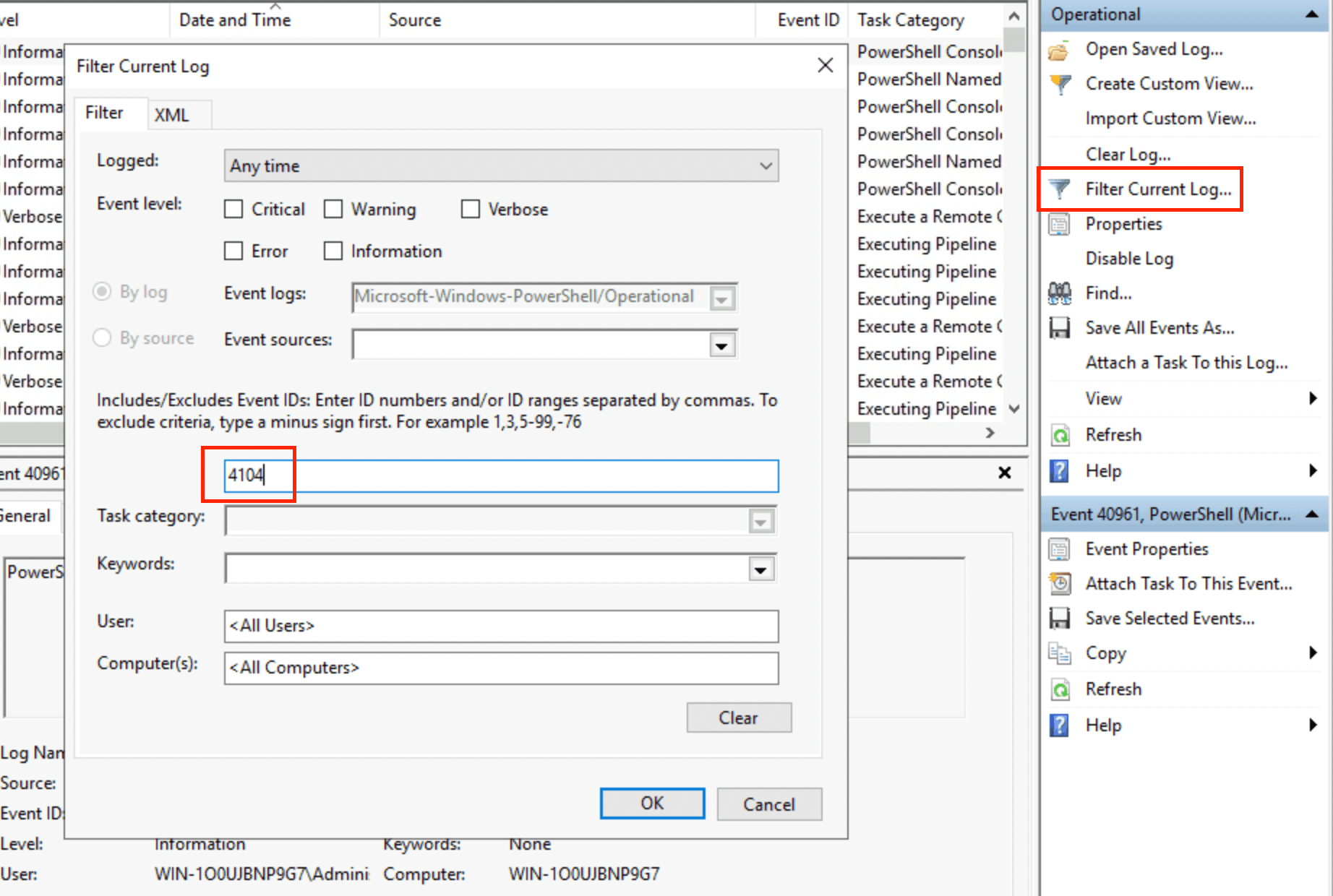
Select OK. You should see 712 events as part of event 4104. Make sure you have sorted on Date and Time correctly, and select the second row.
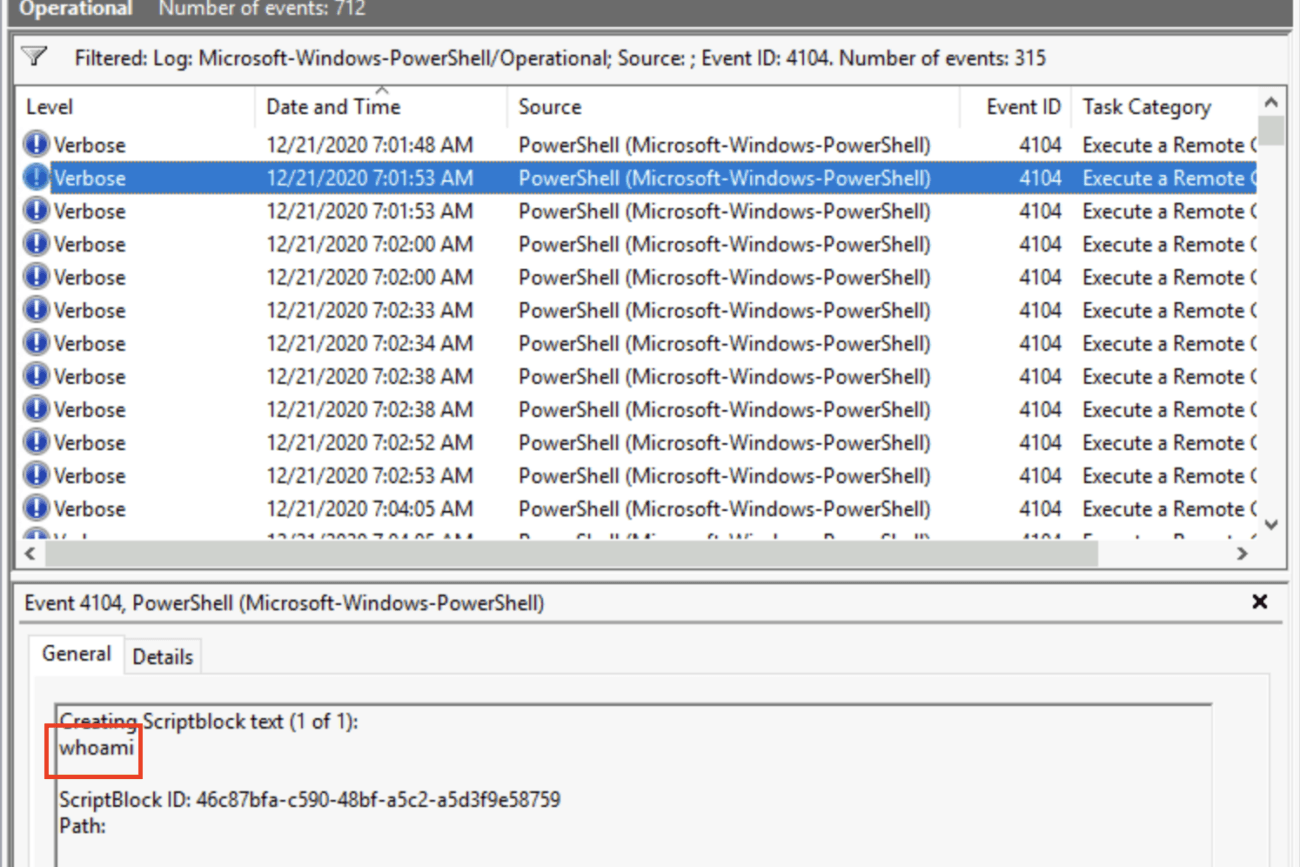
Under General you will see the command: whoami.
Answer: whoami
On the above screen you can find the category. Alternatively, you can see it on the Event propties by double-clicking one of the events in the list:

Answer: Execute a Remote Command
This was a bit confusing to me, as we were already looking at a PowerShell log. But this assignment requires us to look at another log. It is found under Applications and Services Logs -> Windows PowerShell. Now filter on event ID 800:

The answer is found on the fifth column:
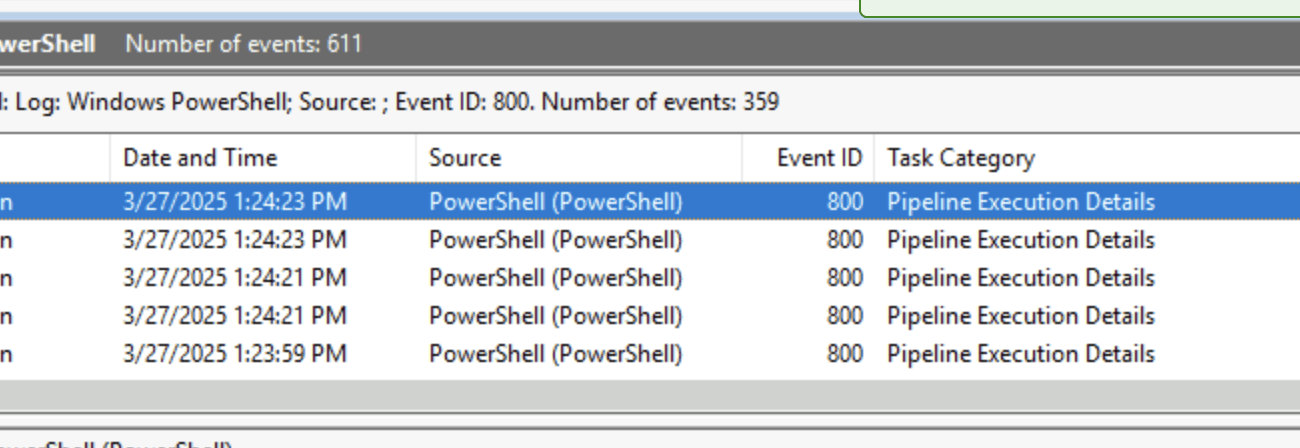
Answer: Pipeline Execution Details
The wevtutil.exe tool is a Windows command-line utility for managing and querying event logs, allowing automation instead of manually sifting through logs.
wevtutil.exeenum-logs (list logs), get-log (view log configuration), set-log (modify log settings).enum-publishers (list event publishers), get-publisher (view publisher info).install-manifest, uninstall-manifest.query-events (qe) – Read events from logs, log files, or structured queries.export-log, archive-log, clear-log./r:COMPUTER_NAME (run command on a remote computer)./u:USERNAME, /p:PASSWORD, /a:AUTH_TYPE./uni:true|false.To query events, use:
wevtutil qe LOG_NAME /q:"QUERY" /f:FORMATStart by looking using the help command: wevtutil qe /?.
PS C:\Users\Administrator> wevtutil /?
Windows Events Command Line Utility.

Enables you to retrieve information about event logs and publishers, install
and uninstall event manifests, run queries, and export, archive, and clear logs.

Usage:

You can use either the short (for example, ep /uni) or long (for example,
enum-publishers /unicode) version of the command and option names. Commands,
options and option values are not case-sensitive.

Variables are noted in all upper-case.

wevtutil COMMAND [ARGUMENT [ARGUMENT] ...] [/OPTION:VALUE [/OPTION:VALUE] ...]

Commands:

el | enum-logs          List log names.
gl | get-log            Get log configuration information.
sl | set-log            Modify configuration of a log.
ep | enum-publishers    List event publishers.
gp | get-publisher      Get publisher configuration information.
im | install-manifest   Install event publishers and logs from manifest.
um | uninstall-manifest Uninstall event publishers and logs from manifest.
qe | query-events       Query events from a log or log file.
gli | get-log-info      Get log status information.
epl | export-log        Export a log.
al | archive-log        Archive an exported log.
cl | clear-log          Clear a log.

Common options:

/{r | remote}:VALUE
If specified, run the command on a remote computer. VALUE is the remote computer
name. Options /im and /um do not support remote operations.

/{u | username}:VALUE
Specify a different user to log on to the remote computer. VALUE is a user name
in the form domain\user or user. Only applicable when option /r is specified.

/{p | password}:VALUE
Password for the specified user. If not specified, or if VALUE is "*", the user
will be prompted to enter a password. Only applicable when the /u option is
specified.

/{a | authentication}:[Default|Negotiate|Kerberos|NTLM]
Authentication type for connecting to remote computer. The default is Negotiate.

/{uni | unicode}:[true|false]
Display output in Unicode. If true, then output is in Unicode.

To learn more about a specific command, type the following:

wevtutil COMMAND /?
Alternatively look at the online documentation:
https://learn.microsoft.com/en-us/windows-server/administration/windows-commands/wevtutil
In this case we need to use the el command:
wevtutil elIf you run this you will get an enormous list of log names. Thus, we need a way to count this for us. We can do this by piping the output of the el command to the Measure-Object cmdlet. This is basicly like wc on Linux.
wevtutil el | Measure-Object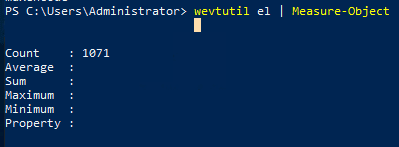
We see a count totalling 1071 log names.
Answer: 1071
This one was a bit nasty! We are expected to run the following help command on the qe command:
wevtutil qe /?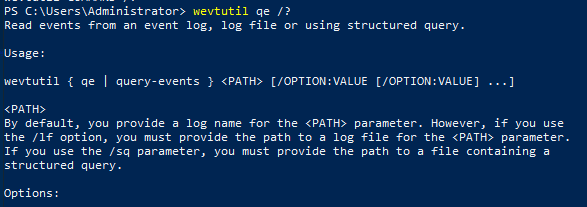
I expected some specific log file names, but the answer actually expects the part of the above output that is on line 1.
Answer: event log, log file, structured query
You can either look at the help command ouput:
wevtutil qe /?
Or you can look at the online documentation. Let’s do this this time. Visit the page at the earlier mentioned URL and you can read the following:
| /lf:<Logfile> | Specifies that the events should be read from a log or from a log file. <Logfile> can be true or false. If true, the parameter to the command is the path to a log file. |
Hence, the answer is /lf:true.
Answer: /lf:true
Look at the output of the help command again:
wevtutil qe /?
The value for /q is Xpath query.
Answer: Xpath query
Go ahead and run the command:
wevtutil qe Application /c:3 /rd:true /f:textNow get ready to answer the following questions.
Answer: No answer needed
The string after the qe flag indicates the PATH, in this case set to the log name (Application).
Answer: Application
Again, look at the help output. We can change the event read direction with /rd.

Answer: event read direction
Once more look at the output. The /c option is for settings the maximum number of events to read.

Answer: Maximum number of events to read
Get-WinEvent is a PowerShell cmdlet used to retrieve events from event logs and event tracing log files on local and remote computers. It replaces the older Get-EventLog cmdlet and supports advanced filtering using XPath, XML, and hash tables.
Get-WinEvent -ListLog * Lists event logs, including their mode, size, and record count.Get-WinEvent -ListProvider * Displays event providers and the logs they write to.Get-WinEvent -LogName Application | Where-Object { $_.ProviderName -Match 'WLMS' } Filters events based on provider name.Get-WinEvent -FilterHashtable @{ LogName='Application'; ProviderName='WLMS' } Uses hash tables for optimized filtering instead of Where-Object.Get-WinEvent -FilterHashtable @{LogName='Microsoft-Windows-PowerShell/Operational'; ID=4104} | Select-Object -Property Message | Select-String -Pattern 'SecureString' Searches for specific event messages.@{ Key = Value }.OK 🙂
Answer: No answer needed
Let’s just run the command from example 1:
Get-WinEvent -ListLog *You should see a long list, but at the near bottom we see two OpenSSH related logs.
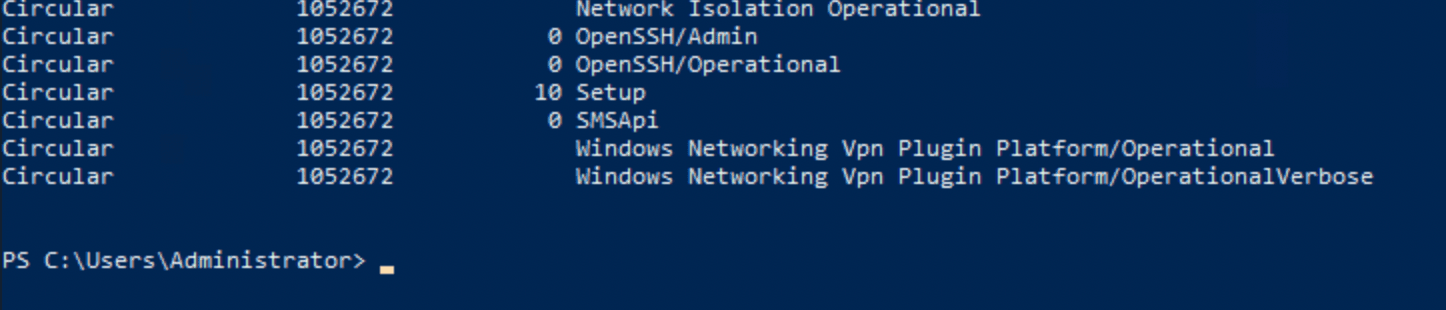
Answer: OpenSSH/Admin,OpenSSH/Operational
Take a look at the documentation page and find example 8. After replacing Policy with PowerShell we get the following command:
Get-WinEvent -ListProvider *PowerShell*
Three log providers are shown. Find the third one and look for the name value.
Answer: Microsoft-Windows-PowerShell-DesiredStateConfiguration-FileDownloadManager
Find command 9 on the docs, and change the log provider to Microsoft-Windows-PowerShell.
(Get-WinEvent -ListProvider Microsoft-Windows-PowerShell).Events |
    Format-Table Id, Description
You will see a long list. Once more, we need to pipe to the Measure-Object cmdlet. This is similar to piping to wc on Linux:
C:\Users\Administrator> (Get-WinEvent -ListProvider Microsoft-Windows-PowerShell).Events | Format-Table Id, Description | Measure-Object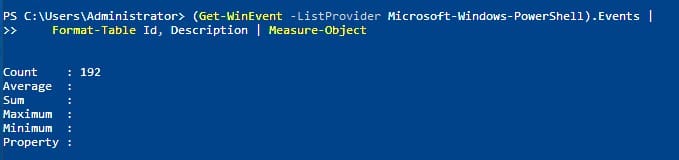
The answer is 192.
Answer: 192
Have a look at example 13 on the help page. Here you can read:
he MaxEvents parameter specifies that 100 records are displayed, from newest to oldest.
Answer: -MaxEvents
This is a very confusing question!
Apparently we can filter the events shown and only include events that are of a specific error level, using the Level key. Windows Event Viewer displays the Level as string values, but they’re enumerated values.
I googled around and found this page:
Here it writes:
The Level key’s names and enumerated values are as follows:
Name Value
Verbose 5
Informational 4
Warning 3
Error 2
Critical 1
LogAlways 0
Hence, the answer is 4.
Answer: 4
XPath is used in Windows Event Logs to query specific events efficiently. The Event Viewer, wevtutil.exe, and Get-WinEvent support XPath-based filtering.
*[System[(Level <= 3) and TimeCreated[timediff(@SystemTime) <= 86400000]]]* or Event, then navigate the XML structure.Get-WinEvent in PowerShell:Get-WinEvent -LogName Application -FilterXPath '*/System/EventID=100'Get-WinEvent -LogName Application -FilterXPath '*/System/Provider[@Name="WLMS"]'Get-WinEvent -LogName Application -FilterXPath '*/System/EventID=101 and */System/Provider[@Name="WLMS"]'EventData (e.g., TargetUserName): powershellCopyEditGet-WinEvent -LogName Security -FilterXPath '*/EventData/Data[@Name="TargetUserName"]="System"' -MaxEvents 1wevtutil.exe:wevtutil.exe qe Application /q:*/System[EventID=100] /f:text /c:1The WLMS part is easy enough at is time mentioned in the theory.
Get-WinEvent -LogName Application -FilterXPath '*/System/Provider[@Name="WLMS"]'Now we just need to add the System Time path behind by using and. The system time is saved in the TimeCreated XML element, and we can filter on it by using the square brackets syntax, similarly to filtering on the Provider name but this time using SystemTime: */System/TimeCreated[@SystemTime=. Add it all together and you get:
Get-WinEvent -LogName Application -FilterXPath '*/System/Provider[@Name="WLMS"] and */System/TimeCreated[@SystemTime="2020-12-15T01:09:08.940277500Z"]'
Answer: Get-WinEvent -LogName Application -FilterXPath ‘*/System/Provider[@Name=”WLMS”] and */System/TimeCreated[@SystemTime=”2020-12-15T01:09:08.940277500Z”]’
We need to find the user Sam. This is briefly covered in the room. The property to look for is the TargetUserName found in the <EventData> tag. For this we need to use the following part:
Get-WinEvent -LogName Security -FilterXPath '*/EventData/Data[@Name="TargetUserName"]="Sam"'In addition we need to use the EventID and filter on ID 4720. Individually this would look like this:
Get-WinEvent -LogName Security -FilterXPath '*/System/EventID="4720"'Adding the two filters together gives us:
Get-WinEvent -LogName Security -FilterXPath '*/EventData/Data[@Name="TargetUserName"]="Sam" and */System/EventID="4720"'Answer: Get-WinEvent -LogName Security -FilterXPath ‘*/EventData/Data[@Name=”TargetUserName”]=”Sam” and */System/EventID=”4720″‘
Run the previous command:

Answer: 2
See the above screenshot 🙂
Answer: A user account was created
We can slightly adjust the previously used command to filter on Event ID 4724:
Get-WinEvent -LogName Security -FilterXPath '*/EventData/Data[@Name="TargetUserName"]="Sam" and */System/EventID="4724"'Run it:

Answer: 12/17/2020 1:57:14 PM
The provider is on the first line of the output on the above screenshot:
Microsoft-Windows-Security-Auditing
Answer: Microsoft-Windows-Security-Auditing
Effective monitoring and hunting require knowledge of key event IDs. Various resources can aid in this task, though no single list is exhaustive. This room covers a bunch of essential resources, such as:
Additional monitoring configurations:
Enabling these features enhances visibility, but additional research and configuration may be required for full effectiveness.
Answer: No answer needed
To answer the questions, additional research may be required. The scenarios focus on analyzing the merged.evtx event log file using various tools.
Each scenario involves analyzing logs for specific security events to detect suspicious or unauthorized activity.
Scenario 1 (Q1 & Q2): PowerShell was previously blocked but is now approved for use. To ensure visibility, PowerShell logging was enabled, and commands were executed on a test machine to monitor relevant logs and event IDs.
In case you are wondering, downgrade attacks are the following:
A downgrade attack, also called a bidding-down attack,[1] or version rollback attack, is a form of cryptographic attack on a computer system or communications protocol that makes it abandon a high-quality mode of operation (e.g. an encrypted connection) in favor of an older, lower-quality mode of operation (e.g. cleartext) that is typically provided for backward compatibility with older systems
This question requires some googling around. I ended up on this great blog article:
https://www.leeholmes.com/detecting-and-preventing-powershell-downgrade-attacks
Make sure to have a read. The most important aspect is the following:
As a detection mechanism, the “Windows PowerShell” classic event log has event ID 400.
Answer: 400
As you might have figured out by now, there are a ton of ways to solve this! You can use the Event Viewer GUI, wevtutil.exe, Get-WinEvent with FilterHashtables, and maybe even some XPath magic? I will try to use some different techniques for the different questions. For this question I will use a regular Get-WinEvent as it is the most easy to read I feel:
Get-WinEvent -Path "C:\Users\Administrator\Desktop\merged.evtx" | Where-Object { $_.Id -eq 400 }I found out that it is impossible to use FilterHashtables when checking out events from a saved evtx file. Anyway, the output is as follows using Where-Object:

The attack took place at 12/18/2020 7:50:33 AM.
PS: XPath filter logic is also valid:
Get-WinEvent -Path "C:\Users\Administrator\Desktop\merged.evtx" -FilterXPath "*[System/EventID=400]"Answer: 12/18/2020 7:50:33 AM
Scenario 2 (Q3 & Q4): The Security Team needs to track event log clearing. A colleague performed this action, and logs must be reviewed to confirm monitoring effectiveness.
When searchinf for log clear events I found the following ATT&CK Technique:
https://attack.mitre.org/techniques/T1070/001
The Event ID to look for is 104 according to this page:
| Monitor for unexpected deletion of Windows event logs (via native binaries) and may also generate an alterable event (Event ID 1102: “The audit log was cleared”). When an eventlog is cleared, a new event is created that alerts that the eventlog was cleared. For Security logs, its event code 1100 and 1102. For System logs, it is event code 104. |
So we can run the following command, where I have described the columns to show since the default only shows TimeCreated, Id, LevelDisplayName and Message.
Get-WinEvent -Path "C:\Users\Administrator\Desktop\merged.evtx" -FilterXPath "*[System/EventID=104]" | Select-Object RecordId, TimeCreated, MessageI tried filtering on 1100 and 1102 as well but this did not return anything. Anyway, here is the output for event ID 104:

Answer: 27736
For this we can simply add the MachineName column to the previous command:
Get-WinEvent -Path "C:\Users\Administrator\Desktop\merged.evtx" -FilterXPath "*[System/EventID=104]" | Select-Object RecordId, TimeCreated, Message, MachineNameThis shows us PC01.example.corp.
Answer: PC01.example.corp
Scenario 3 (Q5, Q6 & Q7): The Threat Intel Team is investigating Emotet malware. The task is to locate event ID 4104 and search for “ScriptBlockText” in EventData to find the encoded PowerShell payload.
Filtering on event ID 1404 should be easy now. It looks like this:
Get-WinEvent -Path "C:\Users\Administrator\Desktop\merged.evtx" -FilterXPath '*[System/EventID=4104]' | Select-Object RecordId, TimeCreated, MessageThis shows us a bunch of events, but we still do not have the ScriptBlockText. We can apparently not just use the Select-Object cmdlet to access this property.
Let’s use the GUI for now by opening the evtx file on the Desktop. Press Filter Current Log, and filter on event ID 4104.
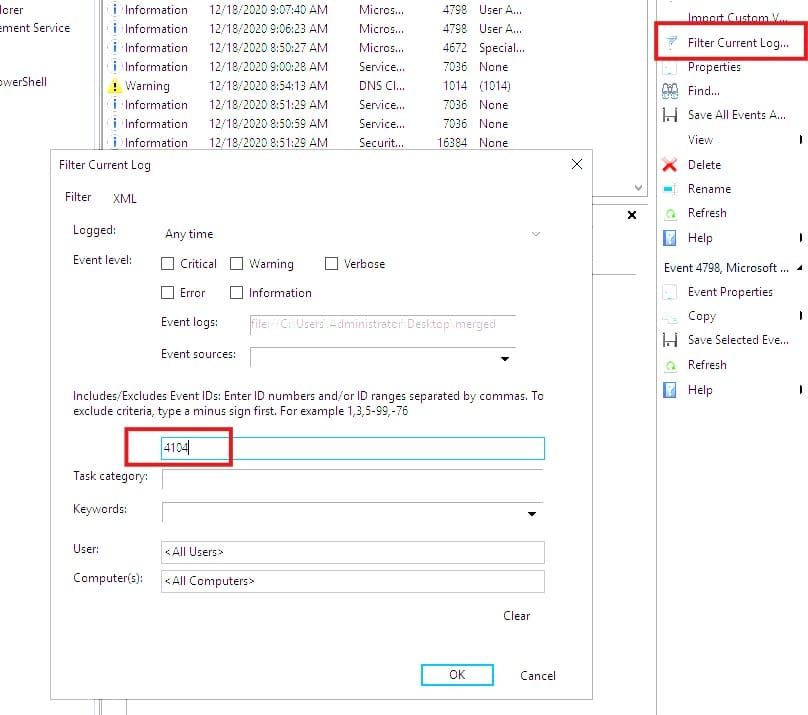
You should see 678 events, maybe a bit much for manual controlling. But anyway, apparently they are interested in the very first event of the list, so go ahead and sort on Date and Time.

Check out the details of the event and you should see the variable name (highlighted above).
Answer: $Va5w3n8
This can be taken directly from the event we looked at above.
Answer: 8/25/2020 10:09:28 PM
Stay on the event and go into the details tab:
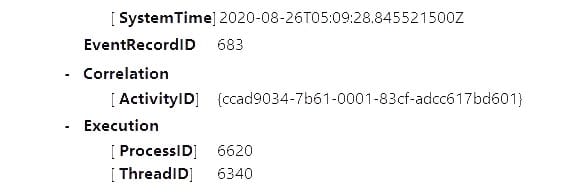
Answer: 6620
Scenario 4 (Q8 & Q9): An intern is suspected of running unauthorized commands. A senior analyst suggested searching for “C:\Windows\System32\net1.exe” to confirm if the intern enumerated Administrator group members.
This one is a bit more difficult. Now, we know that the process we have to look for is “C:\Windows\System32\net1.exe”. There is actually a property called CallerProcessName that we can filter on. So if we combine these two findings we can create a query:
Get-WinEvent -Path "C:\Users\Administrator\Desktop\merged.evtx" -FilterXPath "*[EventData/Data[@Name='CallerProcessName']='C:\Windows\System32\net1.exe']" 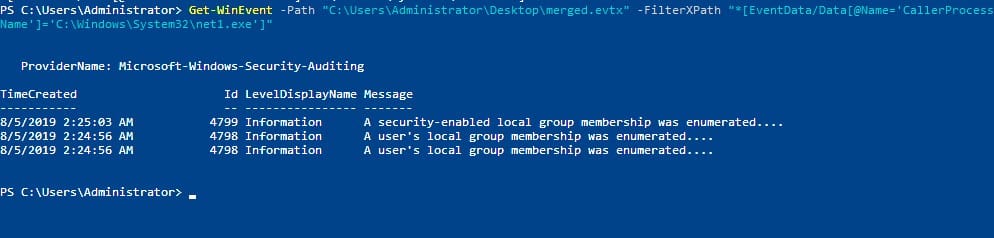
A simple Google Search shows that these event IDs are definitely right:
We can get more information on these events by entering:
Get-WinEvent -Path "C:\Users\Administrator\Desktop\merged.evtx" -FilterXPath "*[EventData/Data[@Name='CallerProcessName']='C:\Windows\System32\net1.exe']" | Format-List *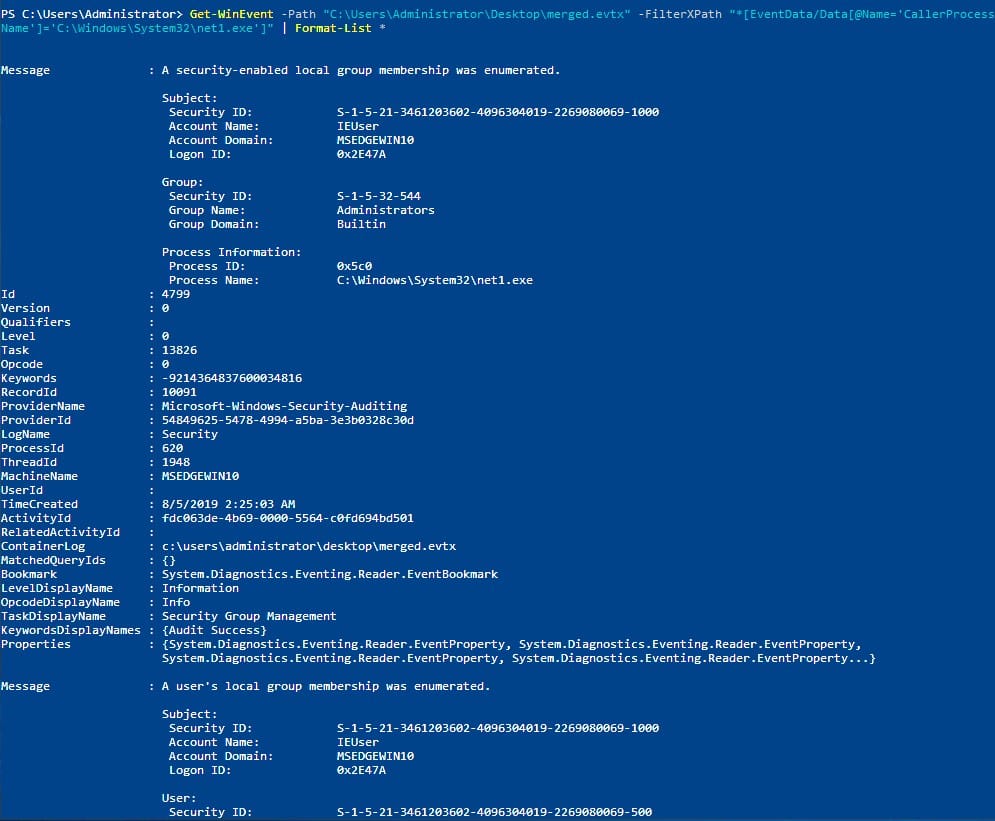
This looks like the right event. And there is the Group Security ID under the group information!
Answer: S-1-5-32-544
Easy peasy, the event ID is 4799.
Answer: 4799
In this room, we covered Windows Event Logs, what they are, and how to query them using various tools and techniques.
We also briefly discussed various features within Windows that you need to enable/configure to log additional events to gain visibility into those processes/features that are turned off by default.
The information covered in this room will serve as a primer for other rooms covering Windows Internals, Sysmon, and various SIEM tools.
I’ll end this room by providing additional reading material:
I sure did 🙂
Answer: No answer needed
Congratulations on completing Windows Event Logs! It was great to me and I loved learning about the different types of event info we can find, and the different ways to query this info.
Come back soon for more walkthroughs of rooms on TryHackMe and HackTheBox, and other Cybersecurity discussions.
Find more of my walkthroughs here.
You are welcome to comment on this post, or share my post with friends.I would be even more grateful if you support me by buying me a cup of coffee:

I learned a lot through HackTheBox’s Academy. If you want to sign up, you can get extra cubes, and support me in the process, if you use the following link: